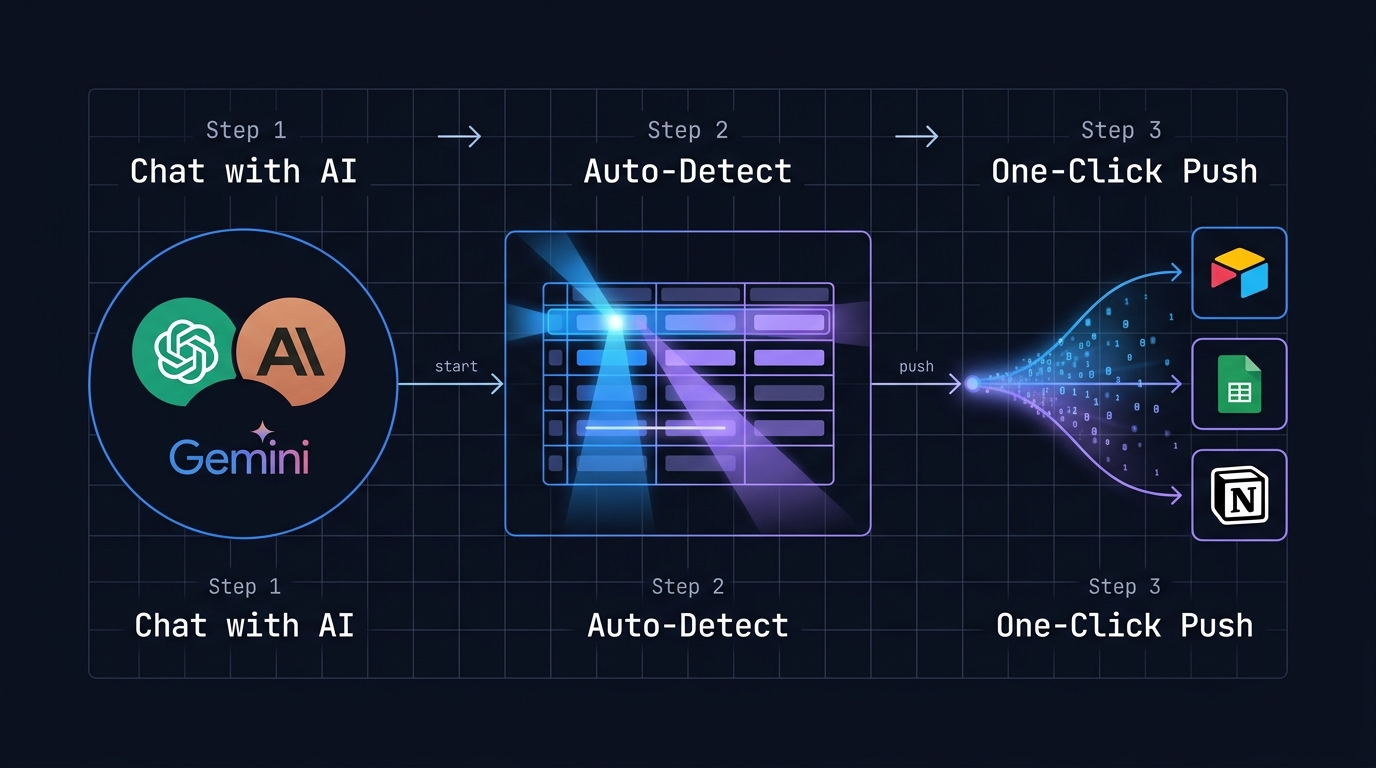
Building a content calendar is one of the most repetitive tasks in marketing. You brainstorm topics, organize them into a table, format dates, and then manually copy everything into your project management tool. With Chat2Base, you can generate a complete content calendar in ChatGPT (or Claude/Gemini), detect the structured data, and push it to Airtable in one click. This guide walks you through the entire workflow — step by step.
What You’ll Build
By the end of this tutorial, you’ll have a living, breathing content calendar inside Airtable — populated with AI-generated topics, publishing dates, content formats, target keywords, and status columns. And the best part? It takes under 30 seconds once Chat2Base is set up.
Why Use AI for Content Calendars?
Content planning has three painful stages:
- Brainstorming: Coming up with ideas that align with your strategy takes hours
- Organization: Turning ideas into a structured table with categories, dates, and formats
- Data entry: Manually typing or copy-pasting each row into your project management tool
AI solves the first two problems instantly. Chat2Base solves the third — removing manual data entry entirely. Together, they turn a 2-hour weekly task into a 10-second workflow.
The Old Way vs. Chat2Base
| Aspect | Manual Process | With Chat2Base |
|---|---|---|
| Brainstorming | 30-45 minutes | 30 seconds (AI generates) |
| Formatting | 15-20 minutes | Auto-detected |
| Data entry | 20-30 minutes | One click |
| Total time | 1-2 hours | ~1 minute |
| Errors | Likely (typos, formatting) | Zero |
What You Need
- Chat2Base Chrome Extension (free, install in one click)
- An Airtable account (free tier works perfectly)
- Access to ChatGPT, Claude, or Gemini (any of them)
Step 1: Connect Chat2Base to Airtable
Once you’ve installed Chat2Base from the Chrome Web Store, click the extension icon in your browser toolbar. You’ll see a clean interface with options to connect to your databases.
- Click “Connect Airtable” — this opens an OAuth flow (Chat2Base never stores your credentials)
- Select the base and table where you want your content calendar to live
- Your columns will be auto-detected — but you can map them manually too
That’s it. You connect once and you’re ready to push data from any AI chat directly into that table.
Step 2: Generate Your Content Calendar with AI
Open ChatGPT (or your preferred AI assistant) and use a prompt like this:
“Create a 3-month content calendar for a SaaS startup that builds AI-powered data extraction tools. Include columns: Month, Week, Topic Title, Content Format (blog/video/social), Target Keyword, Target Audience, Status. Generate 12 rows covering topics like product tutorials, industry comparisons, customer stories, and thought leadership.”
The AI will generate a beautifully structured table. Here’s what it looks like in practice:
| Month | Week | Topic Title | Format | Target Keyword |
|---|---|---|---|---|
| June | 1 | Why AI Data Extraction Beats Manual Entry | Blog | AI data extraction |
| June | 2 | Chat2Base vs Zapier: Which One Saves More Time? | Blog | Chat2Base vs Zapier |
| June | 3 | How to Extract Lead Lists from ChatGPT | Video | extract leads ChatGPT |
| June | 4 | Customer Spotlight: How Sarah Saved 10hrs/Week | Case Study | AI productivity |
| July | 1 | Automating Your Research Workflow with Claude | Blog | research automation |
| July | 2 | From AI to Airtable: Complete Data Pipeline Guide | Guide | AI to Airtable |
Step 3: Detect and Push with Chat2Base
Now comes the magic. With the table visible in your AI chat:
- Click the Chat2Base icon in your browser toolbar (or right-click anywhere on the table and select “Extract with Chat2Base”)
- Chat2Base automatically detects the table structure — every column and row is identified
- Map your columns — the extension shows you a preview. Match AI columns to your Airtable columns. Name matching is intelligent, so “Topic Title” from AI will likely auto-map to your “Title” column in Airtable
- Click “Push” — that’s it. All 12 rows are live in your Airtable base as new records
You don’t copy. You don’t paste. You don’t fix broken formatting. You just click once.
Pro Tip: Save Your Mapping Template
Chat2Base lets you save column mappings as templates. The first time you map a content calendar, save it as “Content Calendar.” Next time, the mapping happens automatically. Your weekly content planning becomes a 3-click operation: prompt → generate → push.
Step 4: Manage Your Calendar in Airtable
Once your data is in Airtable, all of its powerful features are at your fingertips:
- Calendar view — see your content mapped to actual dates
- Kanban view — drag content through Draft → Review → Published stages
- Collaboration — assign writers, add comments, attach files
- Automations — send Slack notifications when a post goes live
- Interfaces — create a clean dashboard for your team
Because Chat2Base pushes structured data, all your Airtable features work perfectly from day one.
Beyond Content Calendars: Other Use Cases
This same workflow works for dozens of scenarios. Some examples:
- Lead generation: Ask AI to research 50 B2B companies → push to CRM
- Competitor analysis: Generate feature comparison tables → push to Sheets
- Project planning: Break milestones into tasks → push to Monday.com
- Research collection: Extract structured findings → push to Notion database
Any time you ask an AI for structured data, Chat2Base can move it to your database in seconds. Learn more about all integrations at chat2base.com.
Why This Workflow Wins
- Speed: From idea to live database in under 60 seconds
- Accuracy: No copy-paste errors, no broken formatting, no missed columns
- Zero setup: No API keys, no webhooks, no Zapier-style configuration
- Privacy-first: 100% client-side — your AI conversations never leave your browser
- Free forever: Unlimited exports, no subscription, no credit card
Frequently Asked Questions
Does Chat2Base work with all AI assistants?
Yes. Chat2Base works with ChatGPT, Claude, Gemini, DeepSeek, Grok, and Perplexity — any AI that outputs structured data as HTML tables.
Can I push to Google Sheets instead of Airtable?
Absolutely. Chat2Base supports Airtable, Google Sheets, Notion, and CSV export. More integrations are on the roadmap.
Will Chat2Base mess up my existing Airtable data?
No. Each push creates new records. It never modifies or deletes existing data.
Is my data secure?
100%. Chat2Base runs entirely in your browser. Your conversations, your data — we never see or store anything. The extension requests only the permissions it needs to detect tables and push data.
Get Started Today
You’re one Chrome extension away from eliminating manual data entry from your content workflow. Install Chat2Base free from the Chrome Web Store, connect your Airtable, and watch your content calendar build itself.
For tutorials, updates, and support, visit chat2base.com.