How to Extract AI Data to Airtable: A Complete Step-by-Step Guide
You’ve just spent 15 minutes crafting the perfect prompt in ChatGPT. The response is gold — a beautifully structured table of competitor analysis, content ideas, or market research data. Now comes the tedious part: getting that data into Airtable.
Most people resort to manual copy-paste. Row by row. Cell by cell. It’s slow, error-prone, and completely unnecessary. There’s a better way — and it’s completely free.
In this guide, I’ll show you exactly how to extract data from any AI chat platform — ChatGPT, Claude, Gemini, or Grok — and push it directly into Airtable using Chat2Base.
Why Airtable + AI Chat Is a Power Combo
Airtable is the perfect home for AI-generated data. Its flexible schema, relational tables, and rich field types (lookups, rollups, attachments) make it ideal for organizing insights you pull from AI conversations.
Here’s what becomes possible when you connect AI chat to Airtable:
- Market research databases — Ask ChatGPT for competitor intel, push structured data straight into Airtable with company names, pricing, strengths, and weaknesses as separate fields
- Content calendars — Generate 50+ blog topics with outlines in Claude, extract to Airtable with topic, keyword cluster, and status columns
- Lead tracking — Pull company lists from Gemini, auto-populate your CRM base with names, industries, and contact info
- Product catalogs — Ask for feature comparisons, extract tables with product names, features, and pricing into linked Airtable records
The only bottleneck? Getting AI data into Airtable efficiently. Chat2Base removes that bottleneck entirely.
The Problem with Manual Data Transfer
Before we dive into the solution, let’s acknowledge the pain points of manual transfer:
- Time waste: A 30-row table takes 5-8 minutes to copy, format, and paste correctly into Airtable
- Format inconsistencies: Airtable expects clean columns. Copy-pasting from AI chat often messes up line breaks, special characters, and number formats
- No repeatability: Running the same prompt daily means repeating the same manual workflow every time
- Scaling nightmare: 10 data extractions a day = 50-80 minutes of just copying and pasting
- Human error: Missed rows, wrong columns, data from the wrong part of the conversation
Chat2Base eliminates every single one of these problems. Let me show you the workflow.
The 4-Step Workflow: AI Chat → Airtable
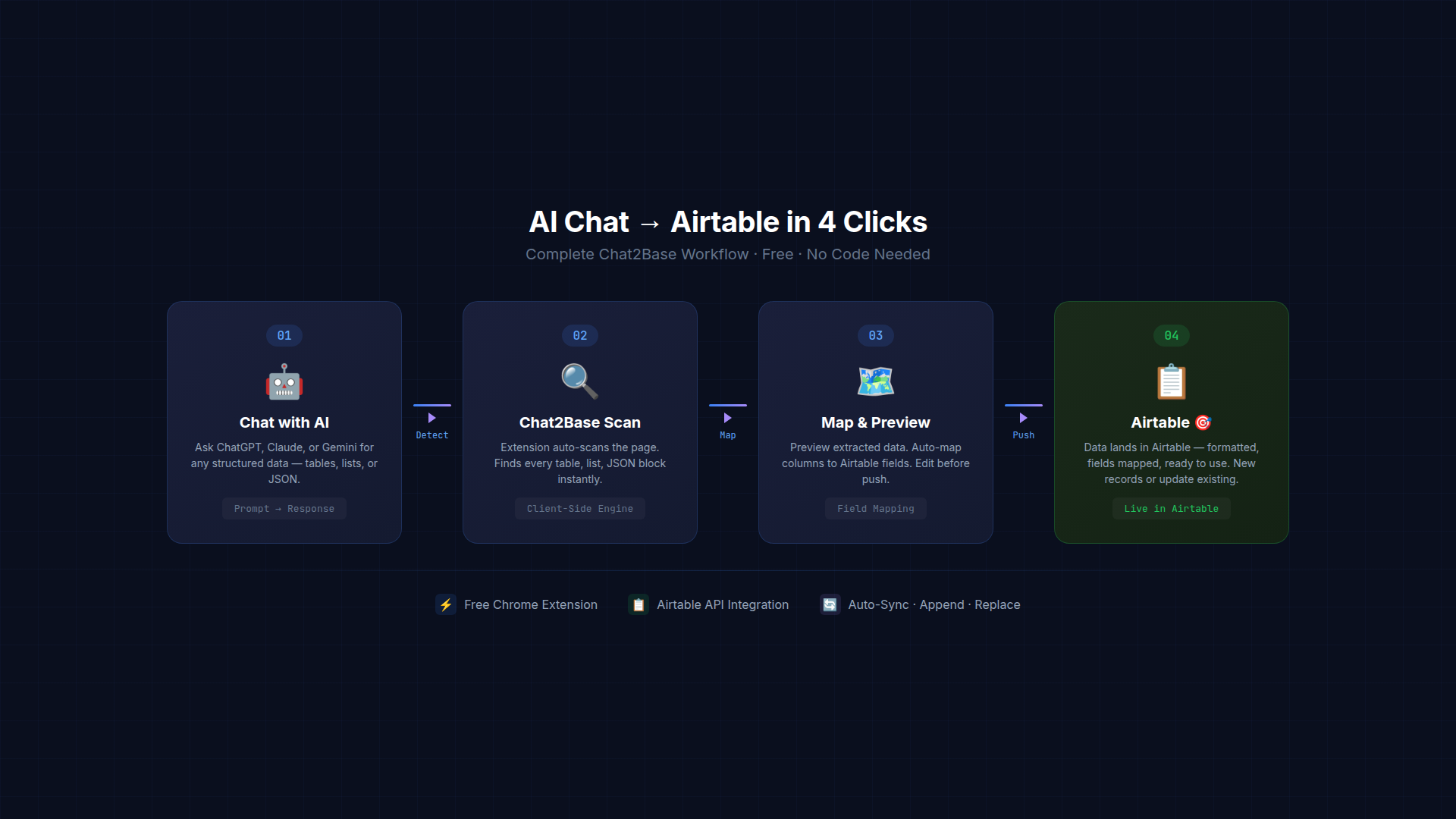
Step 1: Get Structured Data from AI
Start with any AI chat platform — ChatGPT, Claude, Gemini, or Grok. Ask your question and request the response in a structured format. Tables work best, but Chat2Base also handles lists, JSON, and markdown-formatted data.
Pro tip: For the cleanest Airtable import, prompt explicitly: “Give me this data as a table with columns for Company, Industry, Revenue, and Growth Rate.” Structured prompts produce structured outputs.
Step 2: Scan with Chat2Base
With the Chat2Base Chrome extension installed, a scan button appears on every page. Click it once, and the extension automatically detects all structured data on the page — every table, list, and JSON block.
You’ll see a clean preview of each data source. Select the ones you want to export. Chat2Base even shows you the column structure so you know exactly what’s going into Airtable.
Step 3: Map Fields and Preview
Before pushing, Chat2Base shows you a field mapping interface. This is where you:
- Match extracted columns to Airtable fields
- Rename columns if needed
- Choose whether to create a new table or append to an existing one
- Preview the final data before it lands in your base
This preview step is crucial — it ensures your Airtable schema stays clean and your data lands in the right place.
Step 4: Push to Airtable
One click sends your data directly into Airtable. Chat2Base handles:
- New records: Append rows to an existing table
- New tables: Create a fresh table with detected schema
- Updates: Match on a key field and update existing records
- Schema detection: Auto-detect field types (text, number, date, URL, etc.)
The entire process takes about 20 seconds from scan to Airtable. What used to be a 5-minute chore is now a single click.
Real-World Examples
Example 1: Building a Competitor Research Base
Prompt: “Compare the top 20 AI writing tools by pricing, features, and user ratings. Give me a table with columns for name, price, key features, rating, and target audience.”
ChatGPT returns a 20-row table. One Chat2Base scan later, every row is in your Airtable competitor research base — with proper field types, links, and sortable columns.
Example 2: Content Calendar from Claude
Prompt: “Generate 30 blog post ideas for a SaaS productivity tool. Include topic, target keyword, estimated word count, and content format.”
Claude outputs a markdown table. Chat2Base extracts it and pushes to Airtable with columns: Topic, Keyword, Word Count, Format, Status. Add a “Scheduled Date” column and you’ve got a full editorial calendar in under a minute.
Example 3: Lead List from Gemini
Prompt: “List the top 50 SaaS companies in the CRM space. Include company name, funding stage, employee count, and HQ location.”
Gemini returns the list. Chat2Base detects it as structured data and pushes everything to your leads Airtable base. Add enrichment columns later — the data is already in your system, structured and clean.
Why Chat2Base Over Manual Methods?
Let’s be quantitative about this:
| Method | Time per Dataset | Error Rate | Repeatable | Cost |
|---|---|---|---|---|
| Manual copy-paste | 5-8 minutes | High | No | Free |
| CSV download + import | 3-5 minutes | Medium | Partial | Free |
| Zapier automation | 10-30 min setup | Low | Yes | $20+/mo |
| Chat2Base | 15-30 seconds | Very Low | Yes | Free |
At 10 extractions per day, Chat2Base saves you roughly 45-75 minutes daily. That’s 15-25 hours per month. Real time you can redirect to actual work.
Supported AI Platforms
Chat2Base works with every major AI chat platform:
- ChatGPT (OpenAI) — Tables, lists, JSON, markdown
- Claude (Anthropic) — Tables, lists, structured text
- Gemini (Google) — Native tables, lists
- Grok (xAI) — Tables, structured responses
- Perplexity — Research tables and comparisons
- Mistral / Le Chat — Tables, structured data
If you can see structured data on your screen — table, list, JSON, or even well-formatted markdown — Chat2Base can detect it and push it to Airtable.
Getting Started: Your First Airtable Export
Ready to try it? Here’s your 60-second setup:
- Install the Chat2Base Chrome extension (free, no signup required)
- Open ChatGPT, Claude, or any supported AI platform
- Generate structured data — ask for a table, list, or comparison
- Click the Chat2Base scan button on the page
- Preview your extracted data and map fields to Airtable
- Push to Airtable — watch your data appear in seconds
No accounts to create. No API keys to configure. No credit card required.
Advanced Tips for Power Users
1. Automate Recurring Extractions
Running the same research weekly? Save your Airtable base configuration in Chat2Base and reuse it. Each extraction appends to the same table, building a rich dataset over time.
2. Multi-Base Mappings
Different projects need different Airtable bases. Chat2Base lets you save multiple destination configurations. Switching between your content calendar base, competitor research base, and lead tracking base takes seconds.
3. Combine with Other Exports
Don’t limit yourself to one destination. Chat2Base can push the same data to Airtable and Google Sheets simultaneously — perfect for teams that use different tools.
4. Field Type Optimization
Airtable supports rich field types: lookup, rollup, formula, linked records, and more. Set up your base schema first, then use Chat2Base’s field mapping to ensure each column lands in the right field type. Numbers go to number fields, URLs to URL fields, dates to date fields.
Privacy & Security
Everything runs client-side in your browser. Your chat data — including prompts, responses, and extracted information — never leaves your machine. Chat2Base doesn’t store, cache, or transmit your data to any server.
This means:
- Zero data leakage from sensitive business research
- Compliant with enterprise data policies
- No AI training on your conversations
- Works offline after the page loads
Final Thoughts
Connecting AI chat to Airtable shouldn’t require a technical degree, a paid subscription, or 20 minutes of busywork per extraction. With Chat2Base, the workflow is: Chat → Detect → Map → Airtable. Four steps. Twenty seconds. Zero friction.
The barrier between “AI gave me useful data” and “that data is organized in Airtable” has never been lower.
Try it today — install the Chat2Base Chrome extension for free and start pushing AI data to Airtable in one click.
Got questions about the Airtable workflow or want to suggest a guide topic? Drop a comment below.
Useful links:
→ Install Chat2Base Chrome Extension
→ Chat2Base Official Website
→ Airtable