From ChatGPT to Google Sheets: The Complete Chat2Base Workflow Guide
You just spent 20 minutes crafting the perfect prompt in ChatGPT. The AI returns a beautifully structured table with competitor pricing, market size data, and growth projections. Now what?
For most people, the answer is copy-paste row by row into Google Sheets. Maybe a CSV export if they’re feeling fancy. But there’s a faster way — and it’s completely free.
Why Copy-Paste Is Killing Your Productivity
Let’s be honest: manually transferring data from ChatGPT to Google Sheets is painful. Here’s why it costs you more than you think:
- Time drain: Even a simple 20-row table takes 5+ minutes to copy, format, and paste
- Error-prone: Missed rows, broken formatting, accidental overwrites
- Scales terribly: Doing this 10 times a day? You’ve just lost an hour to busywork
- No automation: Every new ChatGPT session means repeating the same manual steps
Chat2Base eliminates every single one of these pain points. Let me show you how.
The 4-Step Chat2Base Workflow
Here’s the exact workflow for moving data from any AI chat interface directly into Google Sheets — without writing a single line of code.
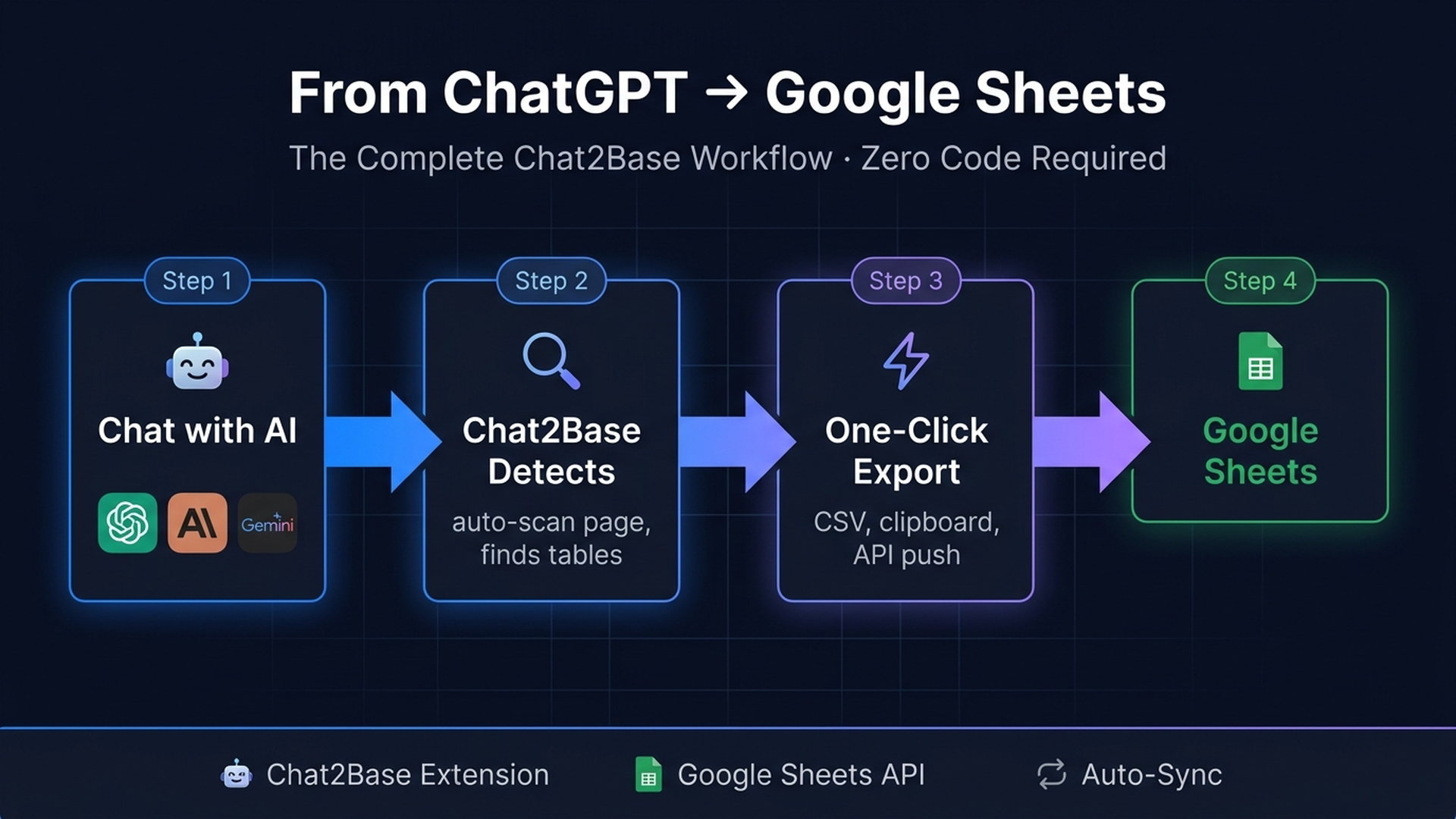
Step 1: Get Your Data from ChatGPT
Start in ChatGPT (or Claude, Gemini, Grok — Chat2Base works with all of them). Ask your question and let the AI generate structured data. You’ll get tables, lists, markdown, or JSON depending on how you prompt.
Pro tip: For best results, ask for data in a structured format. “Give me this as a table” or “output as JSON” makes the extraction even cleaner.
Step 2: Chat2Base Auto-Detects Your Data
With the Chat2Base Chrome extension installed, a small scan button appears on every page. Click it once, and Chat2Base scans the entire page — identifying every table, list, JSON block, and structured dataset automatically.
You’ll see a clean preview of every data source found. Select the ones you want, and Chat2Base prepares them for export.
Step 3: One-Click Export
This is where the magic happens. Rather than copy-pasting or downloading messy CSVs, you pick your destination. Chat2Base gives you multiple export options:
- Google Sheets — Direct push to a new or existing sheet
- Airtable — Auto-map columns to your base schema
- Notion — Create database entries instantly
- CSV — Traditional file download if you need it
- Clipboard — Formatted table ready to paste anywhere
All processing happens client-side. Your data never touches an external server. Zero privacy risk, always compliant.
Step 4: Live in Google Sheets
Within seconds, your data lands in Google Sheets — fully formatted, column headers mapped, rows populated. Chat2Base handles the Google Sheets API integration behind the scenes, so you don’t need to set up OAuth, write scripts, or configure webhooks.
The result? What used to take 5-10 minutes now takes about 15 seconds.
Real-World Use Cases
Market Research → Analysis Sheet
Ask ChatGPT for competitor pricing data. Chat2Base pushes it directly into your analysis sheet. No CSV downloads, no import wizards. The data arrives ready for pivot tables and charts.
Content Planning → Editorial Calendar
Generate 50 blog topic ideas, keywords, and outlines in ChatGPT. One click sends everything to your content calendar sheet. Add columns for status, writer assignment, and publish date — all in Google Sheets where you already work.
Lead Generation → CRM Pipeline
Extract company lists from ChatGPT responses and push them to your lead tracking sheet. Chat2Base preserves all columns: company name, contact info, industry, revenue range — whatever ChatGPT returned.
Advanced Workflows: Automate the Whole Pipeline
Once you’ve got the basic workflow down, you can level up with automation. Here are three advanced setups:
1. Scheduled Data Collection
Run the same ChatGPT prompt daily? Set up a recurring workflow: prompt → extract → append to Google Sheets. Every day’s results stack in a single master sheet with timestamps.
2. Multi-Source Aggregation
Pull data from ChatGPT, Claude, and Perplexity in a single session. Chat2Base extracts from each source independently, and you can push everything to the same Google Sheet for cross-referencing.
3. Team Collaboration Setup
Share a Google Sheet with your team. Everyone uses Chat2Base to push their research into the same sheet. Real-time collaboration without any infrastructure.
Why Chat2Base Beats Zapier for This
If you’re thinking “can’t I just use Zapier?”, here’s the honest comparison:
- Price: Chat2Base is free. Zapier costs $20+/month for similar functionality
- Speed: Chat2Base works in real-time — no 5-minute Zapier polling delays
- Simplicity: No setup, no webhooks, no API keys to configure
- Privacy: Everything runs client-side. Your ChatGPT data never leaves your browser
Zapier is great for server-to-server automation. But when you’re actively working in ChatGPT and need data in a sheet right now, Chat2Base is the faster, cheaper, simpler choice.
Getting Started: Your First Export
Ready to try it? Here’s your 60-second setup:
- Install the Chat2Base Chrome extension (free, no signup required)
- Open ChatGPT and generate some structured data
- Click the Chat2Base scan button
- Select your data and choose “Google Sheets”
- Watch it appear in your sheet in seconds
That’s it. No configuration, no accounts to create, no credit card.
What About Other AI Tools?
Chat2Base isn’t limited to ChatGPT. The same workflow works with:
- Claude (Anthropic)
- Gemini (Google)
- Grok (xAI)
- Perplexity
- Mistral / Le Chat
- Any web app that displays text tables or lists
If you can see data on your screen, Chat2Base can extract it and push it to Google Sheets.
Final Thoughts
The barrier between “AI gave me useful data” and “that data is in my spreadsheet” used to be manual labor. Chat2Base removes that barrier completely.
The workflow is dead simple: Chat → Detect → Extract → Sheets. Four clicks, fifteen seconds, zero friction.
Try it today — it’s free on Chat2Base.com and works with every major AI platform.
Have questions about the workflow? Drop them in the comments below.
Links:
→ Install Chat2Base Extension
→ Chat2Base Website